As promised, here’s part 1 of my review of Scrivener, which is a word processor designed with writers in mind. If you read my last post, you know that I started a free trial of Scrivener during NaNoWriMo, so I have used it on my PC (I have the version for Windows) for 30 days straight from November 1st through November 30th.
 When I opened Scrivener, it prompted me to start a tutorial to learn about its features. I was tempted to ignore this prompt to see how easy it was to learn without it, but as I looked around the screen I realized skipping it might lead to a waste of features that would be useful to me during NaNoWrimo. (Besides, it meant procrastinating starting my novel.) Scrivener actually offered two tutorials: a full version covering everything, and a shorter tutorial that would just explain the basics. I chose to launch into the full tutorial, which Scrivener said could take a couple of hours, determined to race through it as quickly as possible.
In the end, it did take at least two hours. I didn’t mind this terribly because I was already growing excited to use Scrivener’s features. Here’s my main complaint about the tutorial though: YouTube is great for software demos, so I wanted it to be a video, and was a bit disappointed to realize it was completely in a text format, and would require a lot of reading.
Having said that, once I got into the tutorial, its format started to make sense. The segments of the tutorial itself proved to be a sample document showing me how a long work could be organized and written using Scrivener’s features. It offered clear descriptions of where those features were, and sometimes pictures, and it prompted me to perform each of the many tasks that the word processor is capable of, which is a great way to learn how to use something. I really shouldn’t be complaining, it’s just that it’s very tedious to read through that many pages of a manual before using something, and at the end of it I was pretty pooped. The tutorial also seemed as though it hadn’t been updated in a while, and there were a couple of features that are no longer accessed where the tutorial said, assuming I understood it correctly. This only happened once or twice, and again that’s assuming I didn’t just misunderstand where the text was telling me to look. A few more pictures might have made the tutorial easier to follow.
 I’ll go into more detail comparing the two in my next post, but in short, Scrivener doesn’t have to be one long document of text like old MS Word. Instead, one can break a story into chapters, or even scenes, and spread these out, putting them into a hierarchy as one does in an outline, organizing them like index cards on a corkboard or–I think I’ll need to show you some pictures as I explain this.
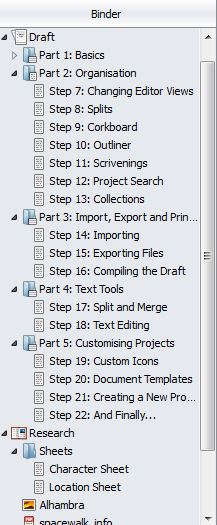
Scrivener is a digital place to contain writing materials that would otherwise be scattered in a variety of locations. When one starts a new project such as a novel, a play, an essay, etc., Scrivener opens a binder for that project. This is the place where you can store all the materials you need to work on your manuscript, from research and planning items such as character sketches to the manuscript itself. On the left you’ll see a screenshot of the “binder” of the tutorial, which scrivener treats like a project. You can see that each section, parts 1 through 5, contains text documents. Imagine that section 1 is chapter 1, or act 1. Each of those text documents within that section 1 folder could contain a single scene. This makes navigating through and keeping track of a long work very simple and straightforward.
Aside from the draft itself and the research, there’s even room in the binder to include other materials such as character sketches and location descriptions, so you can use Scrivener to keep track of all of your supplemental materials as you plan out your longer piece. This is the basic concept behind Scrivener, and as a writer I’ve found that it makes a lot of sense. Within minutes of starting the tutorial, I was thanking the makers of Scrivener out loud. I kid you not. As someone who graduated from college back in May, I’ve done plenty of long writing assignments relatively recently, many of them involving large amounts of research. If I’d had Scrivener during my senior year of college, it would have made my assignments way easier. Honestly, as I went through the tutorial, I couldn’t believe this was the first word processor I had come across with these features. Scrivener essentially takes the basic parts of the drafting process, and makes them easy to do all in one place.
How easy was it to learn to use this program? Well, tutorial aside, once I sat down to write with it, most of it came pretty naturally. I didn’t find myself referring to the tutorial at all once I’d gone through it, though when I go back to revise I may do that to remind myself how to use some features.
I’ll leave this post here to avoid gushing uselessly about how wonderful Scrivener is. In my next one I’ll go through different parts of the writing process and explain how each task is done in Scrivener vs. Microsoft Word. I think that should offer a more useful comparison than my endless gushing. Suffice to say, I’m a Scrivener convert. I purchased it a few days before my free trail ran out.
Have any of you used Scrivener? Did you bother with the tutorial or just skip to using it? I’d love to read other people’s first impressions and find out how easy or difficult it was for other people to learn. Was there any feature that you found particularly difficult to use, or a particular relief to finally have? Leave a comment below!
 The Fountain Pen Blog
This is good to know. I received it as a gift and didn’t do the tutorial, but then found myself frustrated at times with it. I’ll give that a try.
LikeLiked by 1 person
Thanks for the comment! Yeah it’s really tempting to skip tutorials. I mostly did it for the sake of the review (and to procrastinate). I think once you get a sense of how Scrivener is organized it becomes much easier to use. Good luck!
LikeLiked by 1 person
Nice post! I have been using Scrivener for Mac for four years. I like it very much as it made publishing my novel and a couple of short stories easier to handle. I’m still learning about all of the fine features–some I use more than others–and I look forward to using it each morning. Thanks for your post. 🙂
LikeLiked by 1 person
Thanks for your comment! I really appreciate hearing how other people felt about it. Glad to hear the Mac version is good as well.
LikeLiked by 1 person